Switch organisations
Switch organisations when you belong to more than one customer, company, or team account. The active organisation controls which members, plan, credits, connections, workspaces, and conversations you can see.
Switching does not move, copy, or share anything between organisations.
Change the active organisation
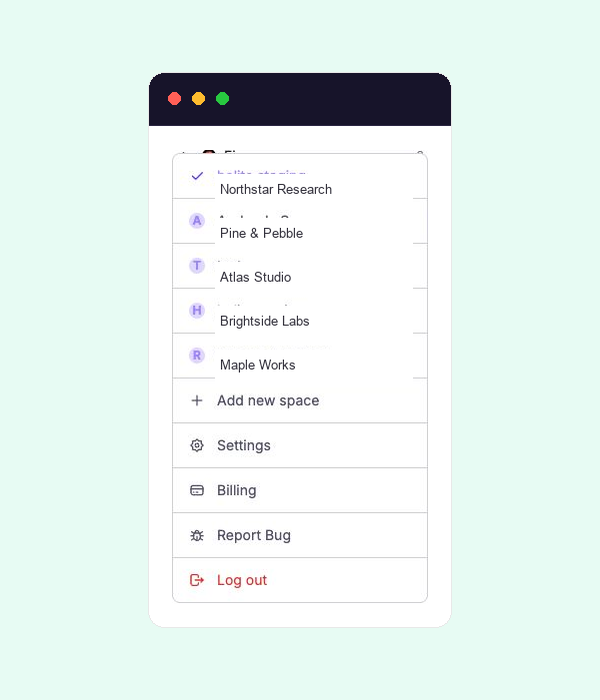
- Open the account area at the bottom of the navigation.
- Select the organisation you want to use.
- Confirm the new organisation name before changing settings, members, or billing.
The organisation selector appears only when your account belongs to more than one organisation.
Continue in the right workspace
Each organisation has its own workspaces. After switching, holito shows a workspace that belongs to the newly active organisation. A workspace from the previous organisation cannot remain active or appear in the new one.
Use the workspace list to change brand or project context inside the organisation. See Workspaces and brand context for the distinction.
Check organisation-scoped actions
Before sending invitations or changing commercial settings, confirm the active organisation again. These actions always apply to the organisation currently shown:
- Inviting or removing members.
- Viewing seat use.
- Viewing or changing the plan.
- Using the organisation’s credits.
- Managing organisation-level connections.
Restore a missing organisation
If an expected organisation is not listed, confirm that you signed in with the email address that received the invitation. Ask an owner or admin of that organisation to check your membership or pending invitation.