Calendar block
A Calendar block lets hollie offer suitable times and arrange a follow-up meeting without sending the participant to a separate booking page.
Before you add the block
The meeting host must connect their own calendar in the same organisation before it can be selected. Follow Calendar connections to connect or restore the host account and review the access involved.
Configure the booking
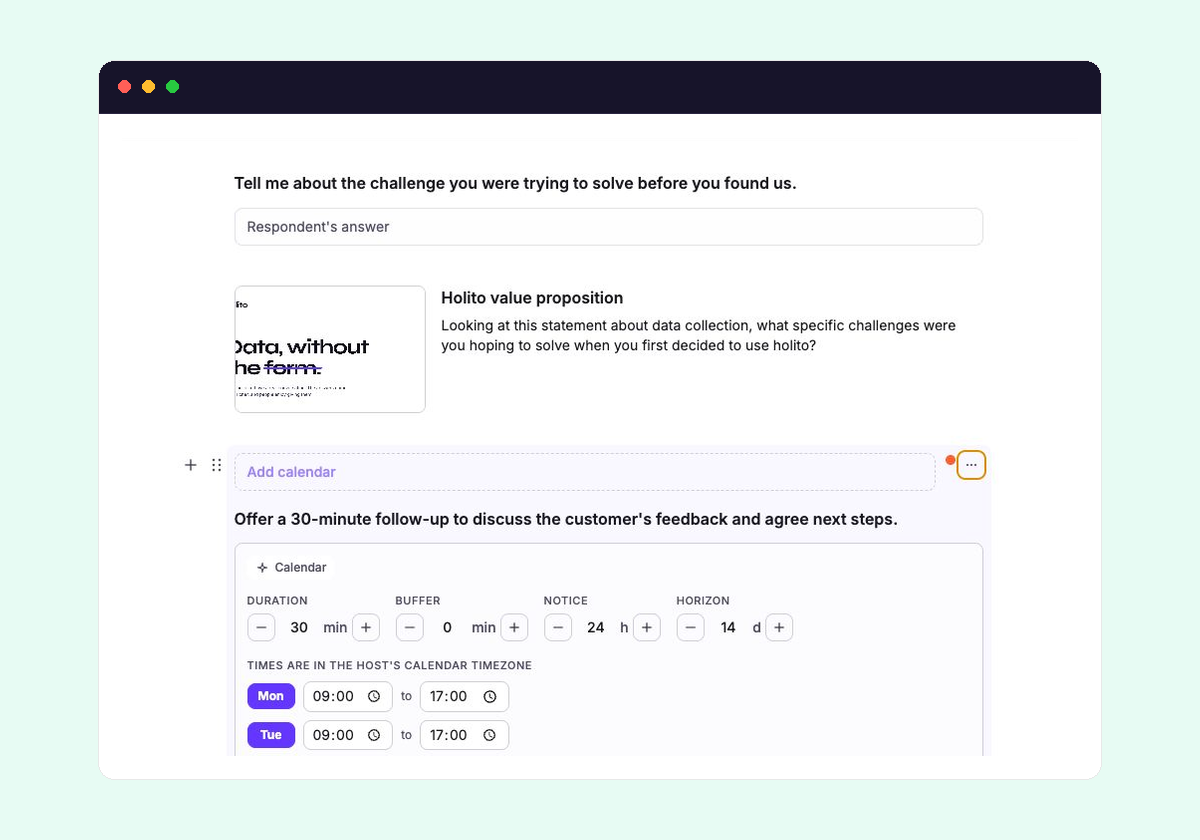
Add a Calendar block in the Conversation builder, then choose the connected host calendar.
Use the directive to describe how hollie should introduce the follow-up. Keep it relevant to the conversation, for example: “Offer a 30 minute follow-up to review the participant’s onboarding feedback.”
Open the block’s settings for the booking rules that affect which times can be offered:
- duration sets the meeting length.
- buffer protects time around each booking.
- notice prevents last-minute bookings.
- horizon limits how far ahead hollie can search.
- The weekday windows define the hours that may be offered in the host calendar’s timezone.
holito combines those rules with the calendar’s existing busy times. There must be enough space for the meeting and its buffer inside both the allowed hours and the booking horizon.
Place it where a meeting is a natural next step, usually after the participant has completed the main discussion.
During the conversation
hollie checks the host’s current availability and offers a small number of suitable times in the participant’s timezone. After the participant chooses, hollie checks that slot again before creating the event.
The booking needs the participant’s email address. hollie uses the address already collected by the conversation, or asks for it before confirming the meeting.
When booking succeeds, the event is added to the host’s Google Calendar and the participant receives a Google Calendar invitation by email. A Google Meet link is included in the event.
Handle an unsuccessful booking
If a chosen time has become busy, hollie offers another available time. If calendar access is unavailable, the host must restore it before the block can book again. See Calendar connections for reconnection and replacement.
If hollie says that a booking could not be confirmed, check the host calendar and the participant’s inbox first. Google may have created the event even when confirmation did not return to holito.