Conversation settings
Conversation settings should change the participant experience or protect the quality of the responses. The defaults cover most cases.
While building or editing the flow, select Settings to open Advanced settings. On an existing conversation, its action-menu Settings opens Campaign Settings for live response controls. Select Edit when you need to return to the builder and its wider settings.
Shape hollie’s approach
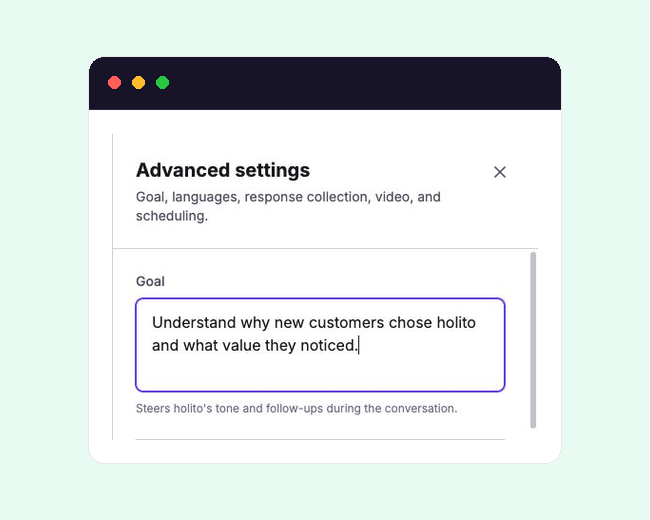
Goal describes what the conversation must accomplish. It influences hollie’s tone and follow-up choices, so write the outcome rather than a broad subject.
“Understand why customers cancel during onboarding and what could have changed the decision” gives hollie more direction than “Churn research.”
Probing depth controls how far hollie follows each topic:
- Surface asks each question once without follow-ups.
- Light adds one clarifying follow-up to vague answers.
- Balanced probes important answers and accepts clear ones.
- Deep uses a longer chain of follow-ups on every topic.
Choose the lowest depth that can collect the evidence you need. Deep is useful for detailed discovery, but can feel excessive when participants only need to provide short confirmations.
Choose the conversation format
Under Format, choose Audio for a voice-only conversation or Video when the participant’s camera response is part of the evidence you need.
Use Require Camera only when an audio-only response would not be usable. Allow Screen Sharing lets hollie request a screen share when seeing the participant’s process would materially improve the conversation.
Options with a plan badge depend on the active organisation’s current availability. Use the badge shown in holito as the source of truth rather than relying on an older screenshot or article.
Set the languages
Conversation Language controls the language hollie speaks. Leave it as Respondent’s choice when participants may prefer different languages, or choose one language when the conversation must stay consistent.
Content Language controls the language used for the transcript and generated written content. It can differ from the spoken conversation language.
Control response collection
Max Responses stops new responses after the chosen total. Leave it empty only when an open-ended response count is intentional. On a live conversation, the maximum cannot be reduced below the number already collected.
Each completed participant response can use one credit. A maximum of 50 responses therefore allows up to 50 credits to be used. See Credits and usage.
Use Allow Duplicate Emails when the same person may need to respond more than once. Turn it off when an email address should identify one response.
Under When to collect identity, choose:
- Before the call when hollie or your follow-up process needs the participant’s details from the start.
- After the call when asking first would add unnecessary friction.
- Never for an anonymous conversation.
Require Name and Require Email apply only when identity is collected. Require only the information you genuinely need.
Schedule availability
Use Opens At when the conversation should remain unavailable until a specific time. Use Closes At to stop new responses after a deadline.
An opening time must be earlier than the closing time. Leave either value empty when that boundary is not needed.
Choose what happens at the end
Under When call ends, choose Show message to keep the participant in holito with a closing note. Choose Redirect when the next step must happen on another page.
Use a redirect only when the destination is part of the promised journey, such as a resource, registration page, or next-stage workflow. An unexpected redirect can make a completed conversation feel unfinished.
For the end-to-end workflow around these settings, see Create your first conversation.