Connect holito to your tools
Connections let holito take part in a wider workflow. The setup depends on where the connection is authorized.
Choose the connection
Start with the result you need:
- Let a participant book a meeting at the right point in a conversation.
- Work with holito through an approved AI tool.
- Continue a holito workflow in another service your team uses.
The Connections reference explains the types currently documented. holito itself shows what is available to your organisation.
Connect the external account
Before you begin, check whether the external service requires an administrator to approve connected apps. You may need an administrator even when you can sign in to the service yourself.
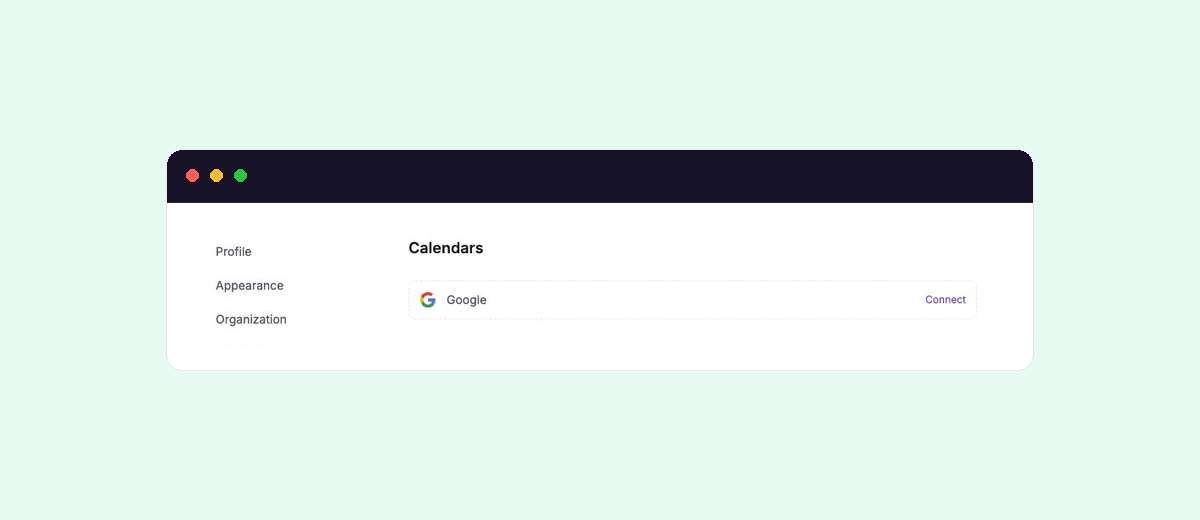
- Calendars are connected in holito. Open Settings > Calendars, choose the provider, then authorize the meeting host’s account.
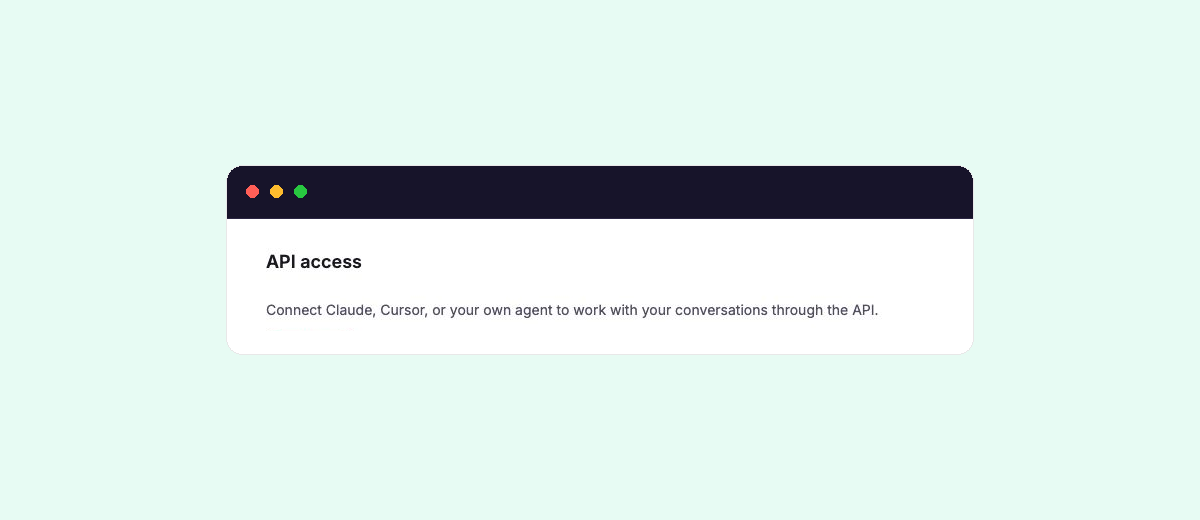
- AI assistants are connected from the external AI client. Add holito’s MCP server there, then authorize access in the browser window that opens.
In either case, check the external account, active holito organisation, and requested access before approving the connection.
If you are reconnecting or replacing an account, review Manage connections before changing a workflow that people already use.
Use the connection in your workflow
Connecting an account makes it available to holito. You still choose where it belongs in the customer journey.
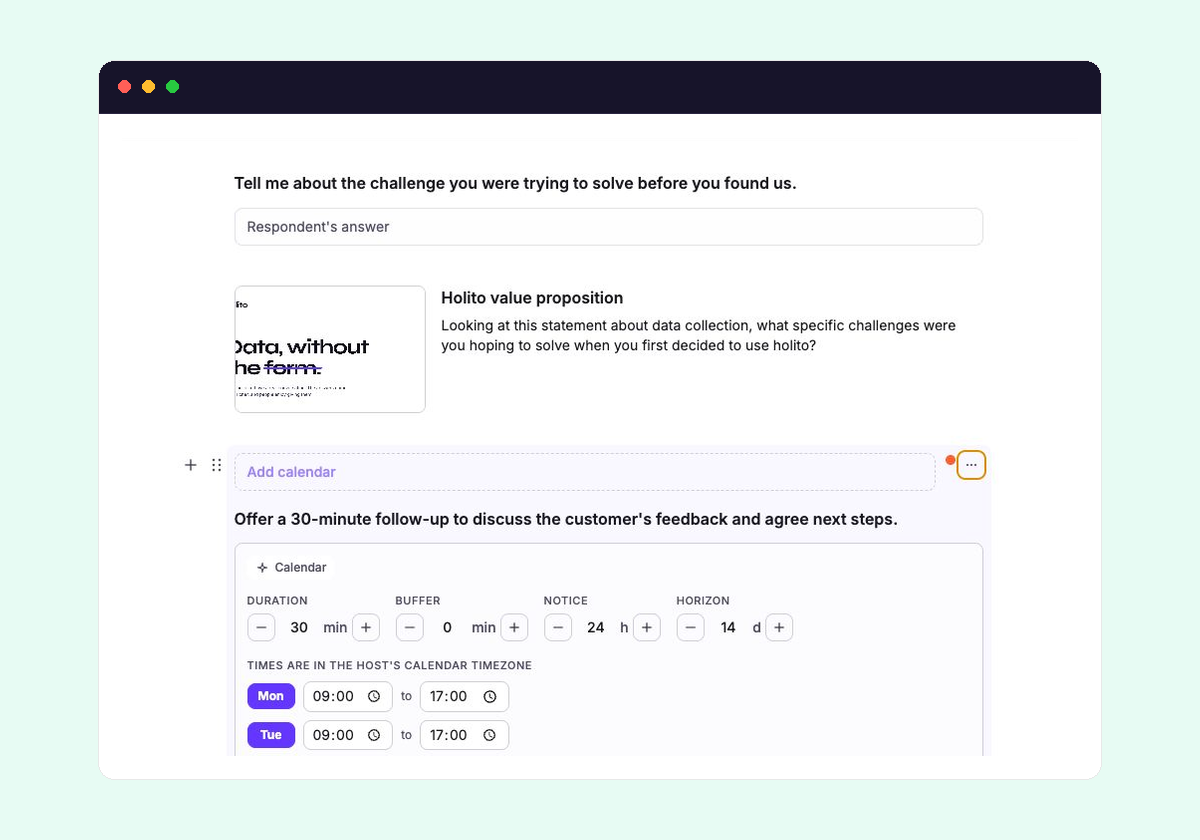
For meeting bookings, add a Calendar block where a useful conversation should lead naturally to a call. Calendar connections explains how to prepare the calendar and use it with the block.
For an AI assistant, complete the setup in the tool you want to use, then choose the holito information or action needed for that task. See AI tools and MCP for the supported setup.
Manage access
Review connected accounts when ownership, permissions, or team responsibilities change. Reconnect an account when its authorization expires, and disconnect access that the team no longer needs.
Disconnecting a service can affect conversations or workflows that use it. Check those workflows first, then follow Manage connections to update or remove the connection safely.
Disconnecting an account does not remove the Calendar block or other feature that depended on it. Update those live workflows so participants are not sent into a broken step.