Calendar connections
A calendar connection gives a Calendar block the host’s current availability and permission to create a meeting after the participant agrees to a time.
Connect the host calendar
The meeting host must authorize their own calendar inside the holito organisation where the conversation will live.
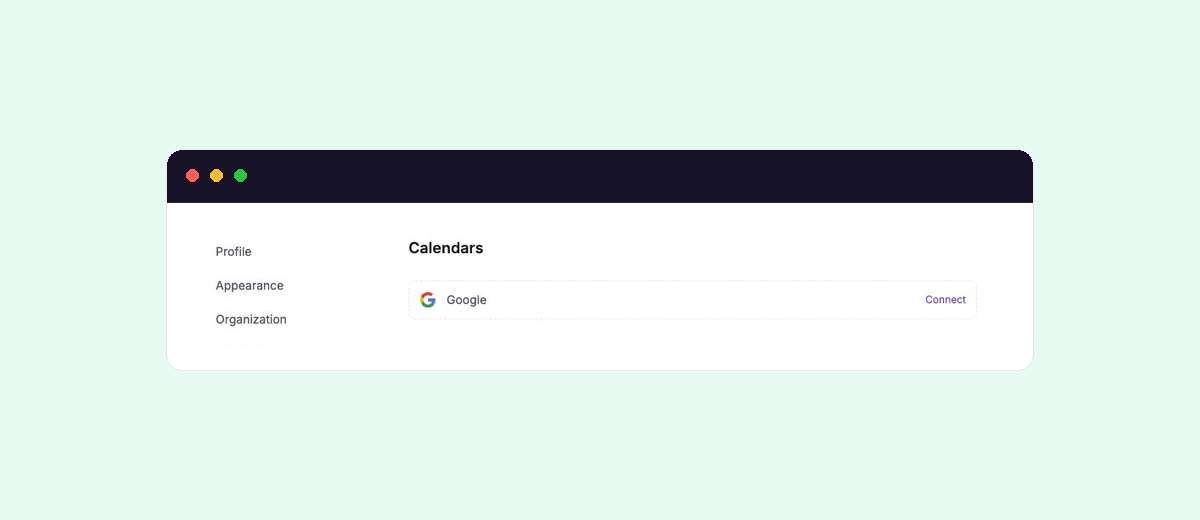
- Open Settings, then go to Calendars.
- Find Google Calendar and select Connect.
- Sign in to the host’s Google account.
- Review and approve the calendar access Google shows, then continue.
- Return to holito and confirm that the correct account is shown.
A Google Workspace administrator may need to approve calendar access for managed work accounts. A holito teammate cannot complete this authorization on the host’s behalf.
Understand the calendar access
For the booking workflow, holito uses the connection to:
- Check when the host is busy within the requested period.
- Use the host calendar’s timezone when evaluating bookable hours.
- Create the event the participant agrees to on the host’s calendar.
- Add the participant to the event and include a Google Meet link.
holito does not ask for or store the host’s Google password. Google handles sign-in and shows the exact access being requested, and the host can remove holito’s access at any time from their Google account. Review that screen before approving the connection.
Availability checks use busy periods to avoid offering occupied times. The booking workflow does not need event titles or descriptions to decide whether a period is free.
Use the connection in a Calendar block
After connecting, open the conversation builder and select the host account in a Calendar block. The block keeps using that specific connection when hollie checks availability and creates the agreed event.
The block’s duration, notice, buffer, booking horizon and available hours determine which free times hollie can offer. Configure those rules in the Calendar block reference.
If another person will host the meeting, they must connect their own calendar. Then update the block to use their connection before sharing the conversation.
Reconnect or replace the host calendar
Return to Settings and Calendars when the account shows Reconnect. The account owner must sign in and approve access again.
To use a different external account, follow Manage connections, then check every Calendar block that depended on the previous connection.
Disconnecting prevents new availability checks and bookings through that connection. Meetings already created remain on the external calendar.
If a booking could not be confirmed, check the host calendar and the participant’s inbox before trying the same time again. The event may have been created even when confirmation did not return to holito.