Set up your workspace
A workspace keeps related conversations, brand context, and brand assets together. Set it up once so hollie has a useful starting point whenever you create a conversation in it.
Choose the right workspace
Your organisation contains your team and its workspaces. Use another workspace when a brand, product, or audience needs meaningfully different context. Keep related campaigns together rather than creating a workspace for every conversation.
If the work needs separate members or billing, it belongs in another organisation rather than another workspace.
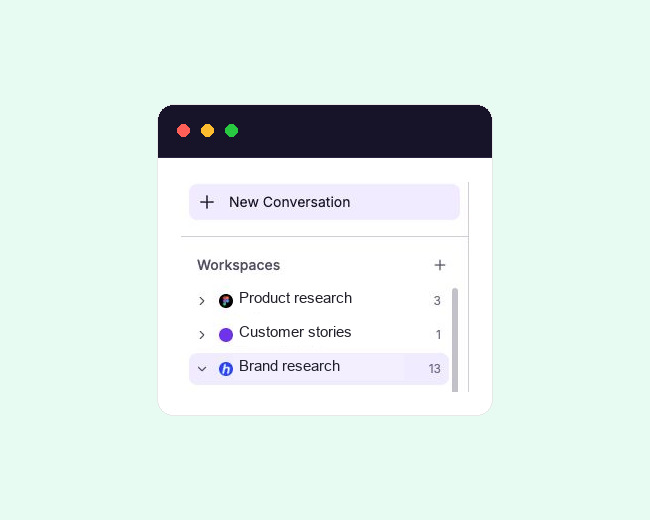
Create the workspace
- Under Workspaces, select New workspace.
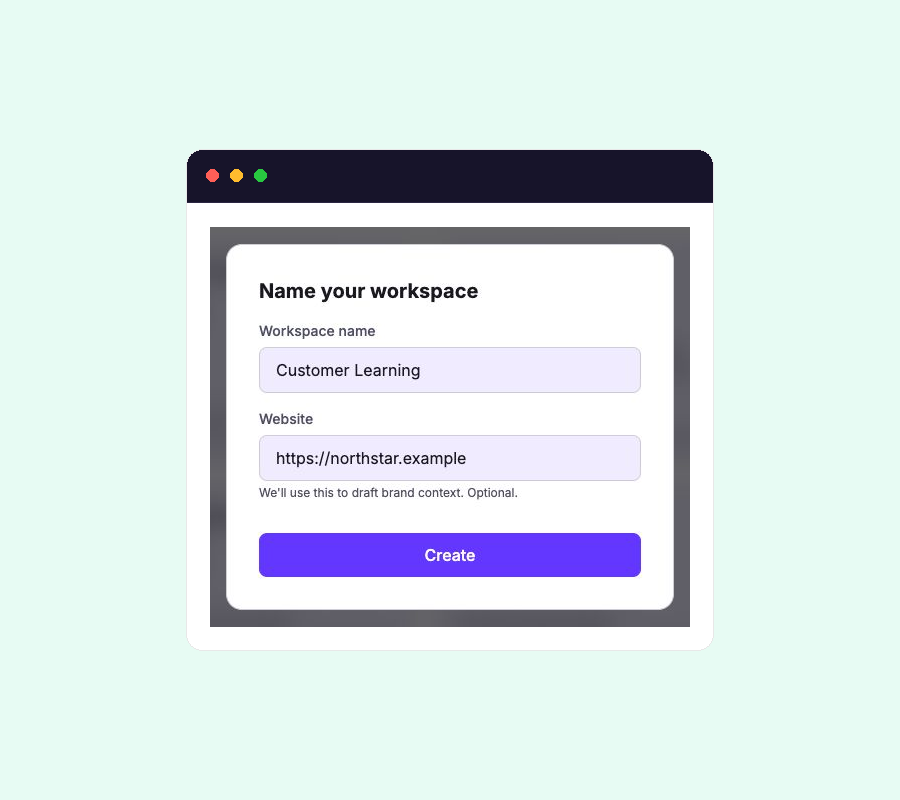
- Enter a clear Workspace name and the most relevant Website, then select Create.
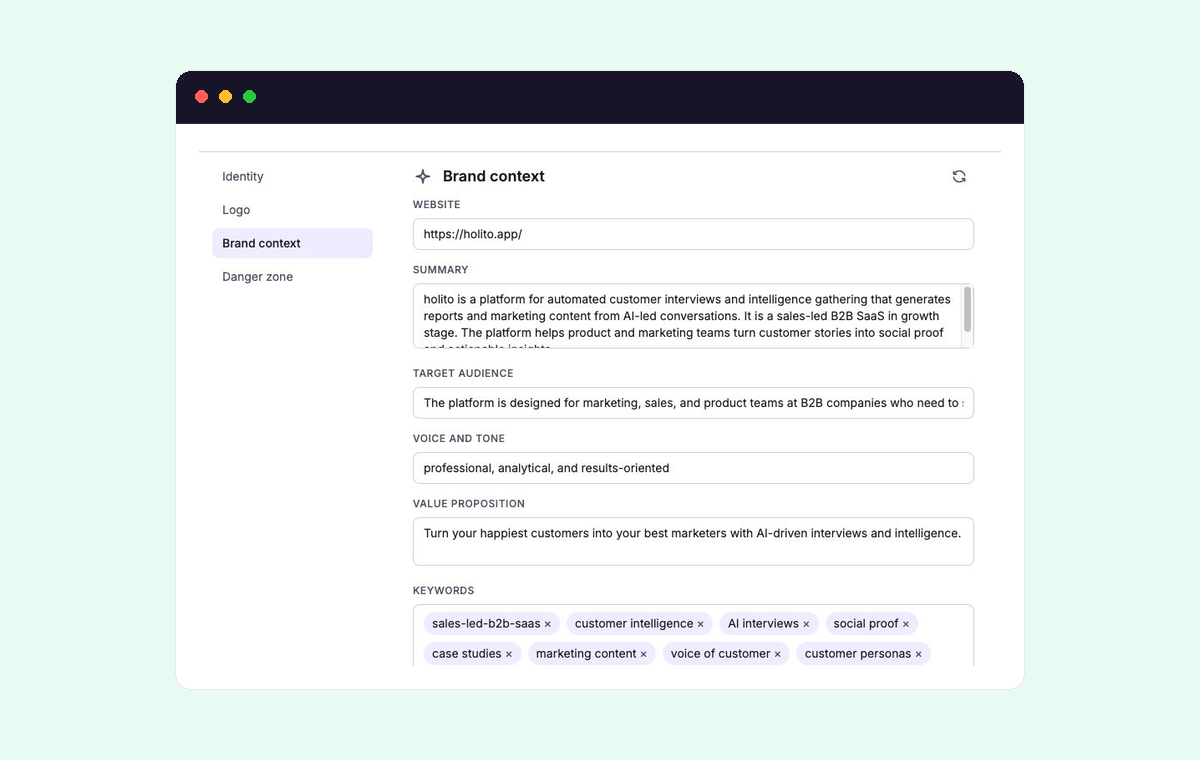
- Open the settings icon beside the workspace and go to Brand context.
The website is optional, but adding one lets holito draft the initial context for you. Use the page that best represents the brand or product this workspace covers.
Make the context useful
Review the draft before creating your first conversation. Correct anything that is vague, outdated, or applies to a different part of the business.
- Make the Summary and Value proposition specific enough to distinguish this offer from alternatives.
- Describe the Target audience as the people you actually want hollie to speak with.
- Write Voice and tone as practical direction, such as “warm, direct, and free of jargon”.
- Keep Keywords to product names and terms that matter in your customer conversations.
Brand context should help hollie understand the business, not script what participants are expected to say. Update it when your positioning, audience, or offer changes.
If the source website has changed substantially, select Re-research, then check the new draft. Copy any brand context you need to preserve before re-researching.
Start in the right workspace
Before creating a conversation, check that the intended workspace is active. hollie uses that workspace’s context when helping you draft the conversation, and the finished conversation stays with that workspace.