Organisation members and seats
Membership is organisation-wide. A member can access the workspaces in that organisation according to their role, so do not invite someone only to give them access to one workspace.
Owners and admins manage members from Settings > Members. Other roles can see the team but cannot send invitations or change access.
Choose a role
Choose the least access someone needs for their work:
- Owner is responsible for the organisation and ownership-only actions. Ownership is not assigned through the normal invitation flow.
- Admin manages the organisation and team as well as its conversations.
- Editor creates and edits conversations without managing the organisation.
- Viewer has read-only access.
The role applies across the organisation, not to one selected workspace.
Understand seat use
The Members section shows current seat use against the organisation’s limit. Seat treatment can vary by plan and role, so use the live seat bar rather than a quantity copied from an older article.
Do not assume a pending invitation or a particular role is excluded from the limit. Check the live seat bar first. If the limit is reached, revoke an unused invitation, remove access that is no longer needed, or review the current options under Billing.
Invite a member
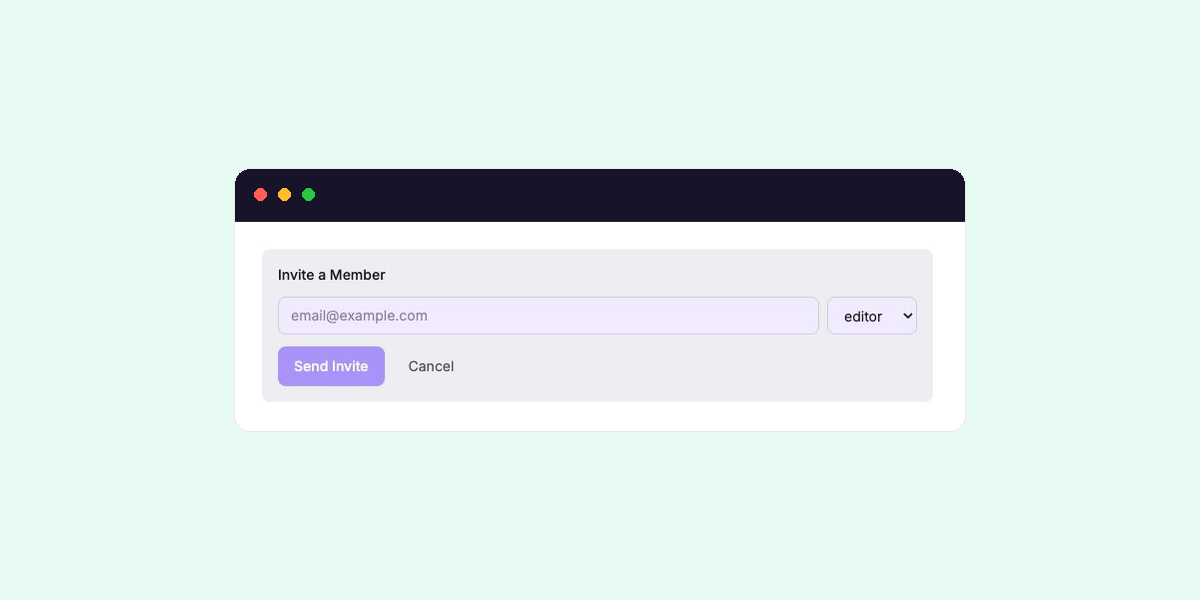
- In Settings > Members, select Invite Member.
- Enter the person’s email address.
- Choose their role.
- Select Send Invite.
A pending invitation appears separately from accepted members. Check the live seat bar to see how it affects the organisation’s current limit.
Manage pending invitations
Use Resend when the invitation exists but the email did not arrive. Use Revoke when the person should no longer be able to join.
If holito reports that the email is already a member, manage that person’s existing role instead of sending another invitation.
Change or remove access
Owners and admins can change a member’s role from their row. They can also remove a member who no longer needs access.
You cannot change your own role or remove the organisation owner through this list. Removing a member removes their organisation access but does not remove the conversations or responses already held by the organisation.