Automation sequences
An automation sequence sends invitation and reminder emails to a known audience. Each person moves through the same sequence independently, based on when they were added and how they respond.
Build the sequence
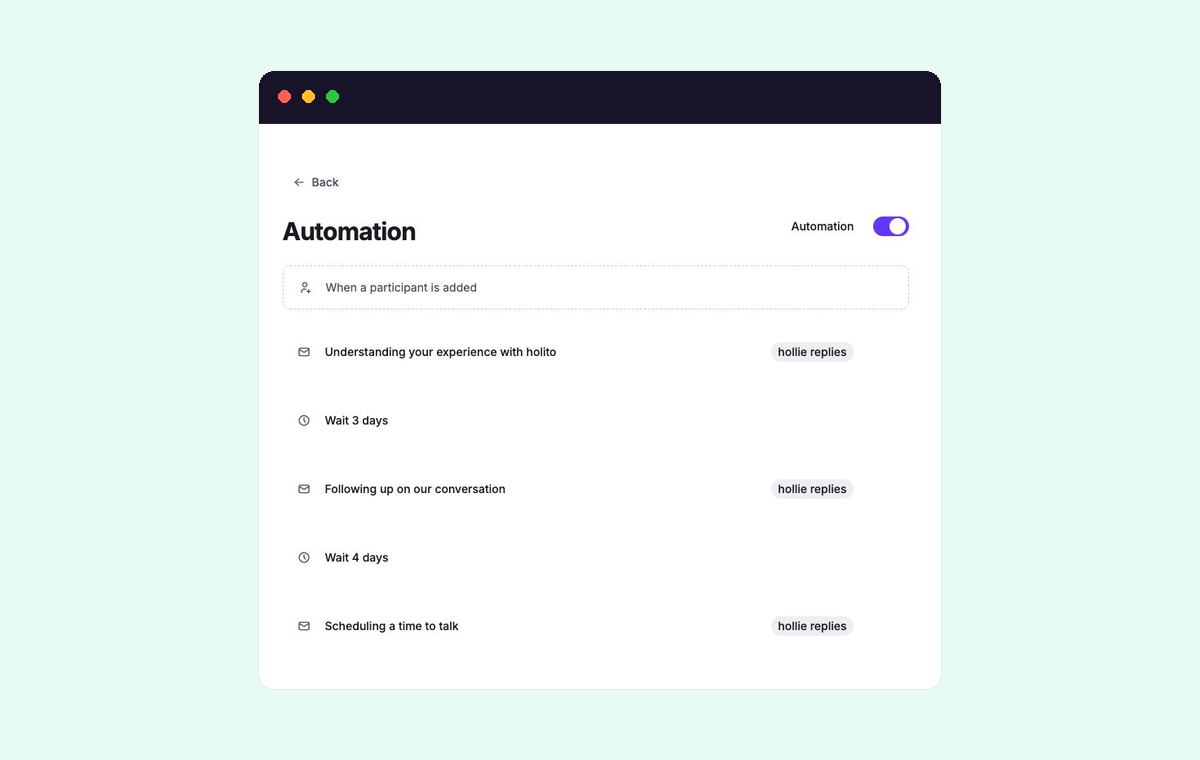
Open the conversation and select Automate. The sequence begins When a participant is added and has a fixed final boundary: Stops when the conversation completes.
Between those boundaries, arrange two types of step:
- Email sends a message from the selected organisation member.
- Wait delays the next step by a number of hours, days, or business days. Business days skip weekends.
A disabled step remains in the sequence but is skipped.
Prepare each email
Choose a recognizable Sender, then write the Subject and Body. Use participant details only when they make the request more relevant. Keep the conversation link in every invitation or reminder that asks someone to respond.
The optional Button gives the email a separate call to action. It is not needed when the body already links naturally to the conversation.
Sequence placeholders insert information such as the person’s name or conversation link when the email is sent. Keep useful fallback text for details that may be missing from an imported audience.
Let hollie handle replies
Enable Let hollie reply on your behalf on an email when recipients should be able to answer it naturally. hollie uses the invitation and the latest message to continue the exchange, answer relevant questions, or help agree a meeting time.
Keep the disclosure that hollie is assisting with the reply. Turn this setting off when replies should go directly to the human sender or require personal judgment from the outset.
Incoming messages and hollie’s replies appear in the person’s Messages history. Read that history before contacting the person separately so you do not repeat or contradict the exchange.
Start and change the sequence
Turn on Automation before adding people. New participants enter at the first enabled step. Use Invite people to enter addresses, paste a list, or import a CSV.
With Automation on, newly added people enter the sequence immediately. Test with internal addresses before adding customers.
Edits affect people who are still moving through the sequence. They do not change messages that have already been sent. Review the whole sequence before changing it during live outreach.
Turning off Automation holds the sequence for everyone without removing their progress. Turning it on again resumes eligible participants. Use Pause from an individual person’s actions when only that person’s outreach should stop temporarily.
How outreach ends
An email is skipped when it no longer applies to the participant’s progress. Further outreach stops when the participant completes the conversation, unsubscribes, is removed, or has a Delivery issue.
Starting a conversation and completing it are separate events. The participant and invitation status reference explains how the People list represents both invitation progress and response outcomes.
Monitor messages and progress
Return to the conversation’s People list. A person’s status shows their current progress. Open View details to see the next sequence step and the chronological Messages history.
Use Pause when your team needs to take over temporarily. Use Remove only when the person should receive no more outreach from this sequence, because removal also deletes their automation message history.
Recover an interrupted update
- Select Retry when an update failed and your current changes remain on screen.
- Select Reload latest when another edit changed the sequence first. Review the latest version before making the change again.
- For Delivery issue, verify the address outside holito and contact the person through another route or invite a corrected address.
For help choosing an audience and writing the sequence, see Automate outreach and invitations.