Embed holito on your website
An embed lets visitors open a holito conversation without leaving the page where you invited them. The conversation opens over the page in a full-screen view.
Choose the launcher
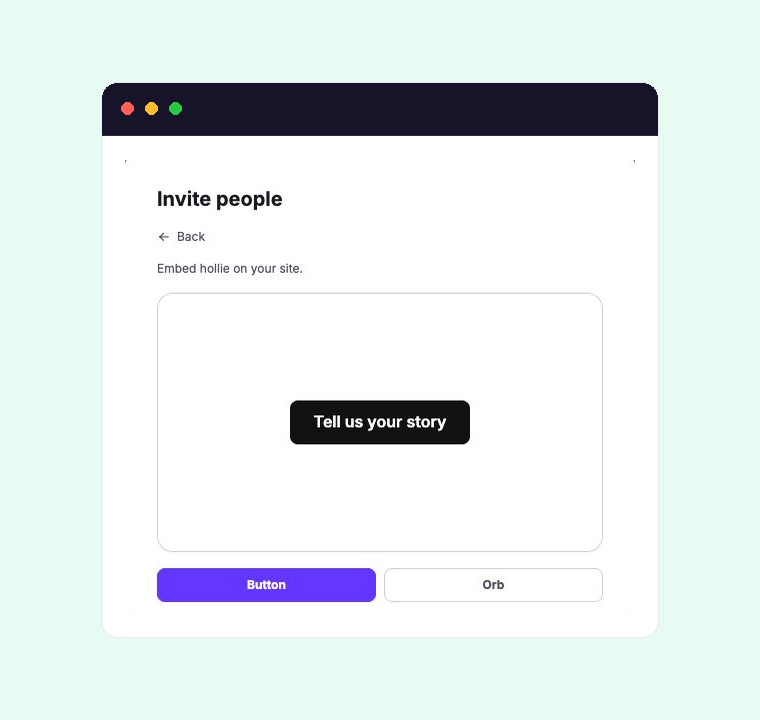
Open the conversation, select Invite people, then open Embed on your site. Choose the launcher that fits the page:
- Button adds a compact Tell us your story button. It suits pages where the surrounding copy already explains the invitation.
- Orb adds hollie’s animated orb with a Start button. It gives the conversation a stronger visual presence and needs more room on the page.
Changing the launcher creates a different snippet. Replace the snippet on your website when you switch styles.
Install the embed
- Choose Button or Orb, then select Copy.
- Paste the complete snippet into the page where the launcher should appear.
- Publish the page and test the launcher on the published domain.
The snippet contains a placeholder for this conversation and the holito script that turns it into a launcher. If your website separates page markup from scripts, keep the placeholder where the launcher belongs and load the script once on the page.
Some website builders remove scripts pasted into ordinary text or content blocks. Use the builder’s custom HTML, code embed, or equivalent area.
Restrict the embed to your domains
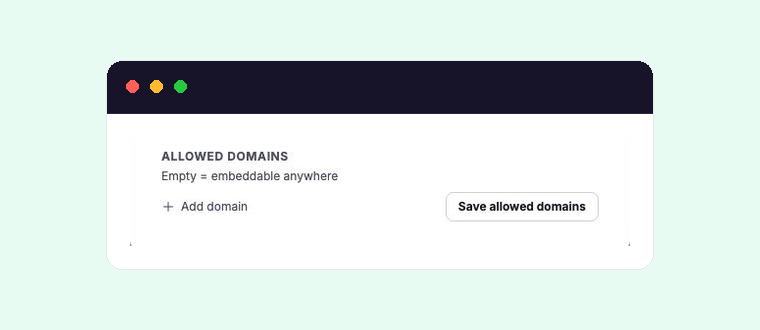
Use Allowed domains when the launcher should work only on websites you control.
Leaving Allowed domains empty lets the embed run on any website where its snippet is installed.
Enter an origin rather than a full page URL:
https://example.comallows that exact website origin.https://*.example.comallows one subdomain level, such ashttps://research.example.com.
The protocol is part of the match. A wildcard does not include the main example.com domain, so add the exact origin as well when both should work. Paths such as /customers do not belong in an allowed-domain entry.
Select Save allowed domains, then test every website or subdomain where the embed is published.
What visitors experience
Selecting the button or orb opens the conversation over the current page. The conversation uses the same identity, language, voice or video, and completion settings as its share link.
If the website prevents camera or microphone access inside the embed, the visitor sees Open in a new tab and can continue there instead.
Changes to the conversation’s questions or participant settings apply without replacing the embed code. Only replace the snippet when you change the launcher style or move to a different conversation.
Update or remove the embed
To change its position, move the complete snippet to the new location in your website editor. To remove one conversation, delete its holito placeholder from the page. Remove the holito script as well only when no other holito embed on that page uses it.
Changing Allowed domains takes effect without changing the website code.
Recover an embed
The launcher says “embed not authorized”
Add the published page’s exact origin to Allowed domains. Check the protocol and add both the main domain and its required subdomain pattern when necessary.
The launcher does not appear
Confirm that the complete snippet is present in a custom HTML or code area and that your website has not removed its script. Republish the page after correcting it.
The conversation opens in a new tab
The website is blocking camera or microphone access inside the page. The participant can continue in the new tab, or your website administrator can allow those permissions for the holito embed.