Automate outreach and invitations
Use automation when you have a known group of people to invite and want holito to handle the initial message, reminders, and progress tracking. A good sequence feels like considered outreach from your team, not a campaign sent for its own sake.
Choose a focused audience
Start with people who share a clear reason to take part, such as completing onboarding, reaching an important result, or using the same feature. Keep audiences with different relationships or motivations in separate outreach so the invitation and resulting responses stay focused.
Before inviting anyone, make sure the conversation is ready to receive them. Preview the opening, confirm that its purpose matches the invitation, and remove questions that the audience cannot reasonably answer.
Build the sequence
Open the conversation and select Automate. The sequence runs from top to bottom using email and wait steps.
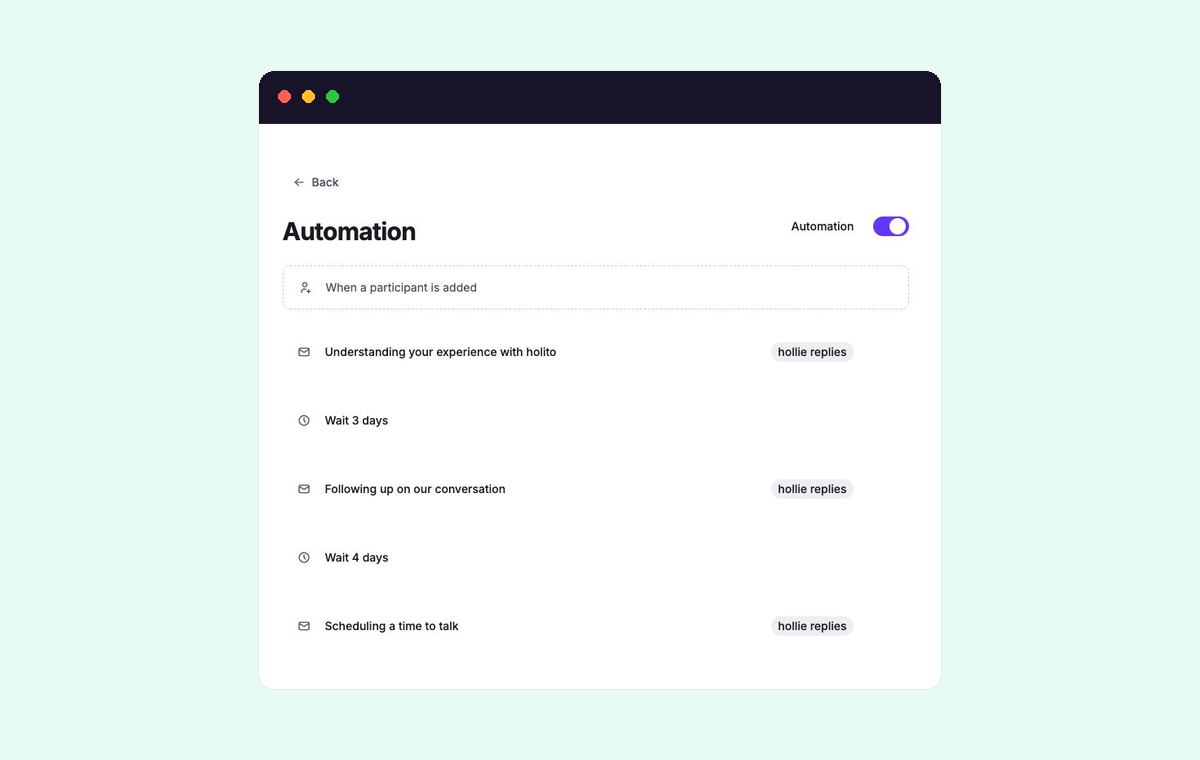
Shape the sequence around the amount of attention the request deserves:
- Use the first email to explain why you chose this person, what you want to learn, and how long the conversation should take.
- Add a wait that gives people a reasonable opportunity to respond. Business-day waits are useful when weekends should not shorten that opportunity.
- Use a reminder to add context or restate the value of taking part. Avoid resending the original invitation with only a different subject.
- Stop after a small number of useful messages. A longer sequence rarely makes a low-priority request feel more relevant.
For the full behaviour of email and wait steps, see Automation sequences.
Write as the sender
Choose the organisation member whom recipients will recognize and trust. The sender should be close enough to the relationship to make the request credible and able to help if personal follow-up is needed.
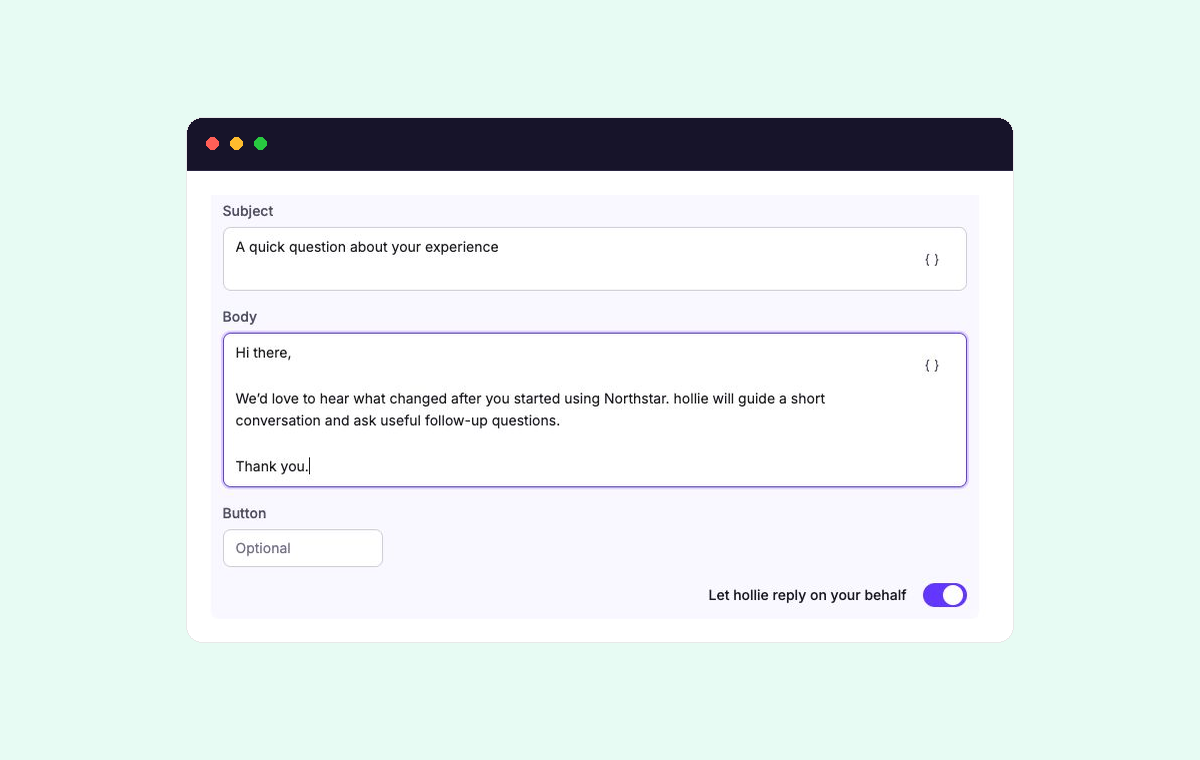
Keep each message short and specific. Include:
- The reason you are contacting this person now.
- The subject you would like them to discuss.
- What their response will help your team do.
- The expected time commitment or response date when either matters.
Use the available personal details only where they make the message more relevant. Do not add personalization merely to prove that you have the data.
When Let hollie reply on your behalf is enabled for an email, recipients can reply naturally instead of starting a separate support thread. hollie answers in the context of the invitation and can continue a scheduling exchange. Review the message first so recipients understand that hollie may respond for your team.
Add people
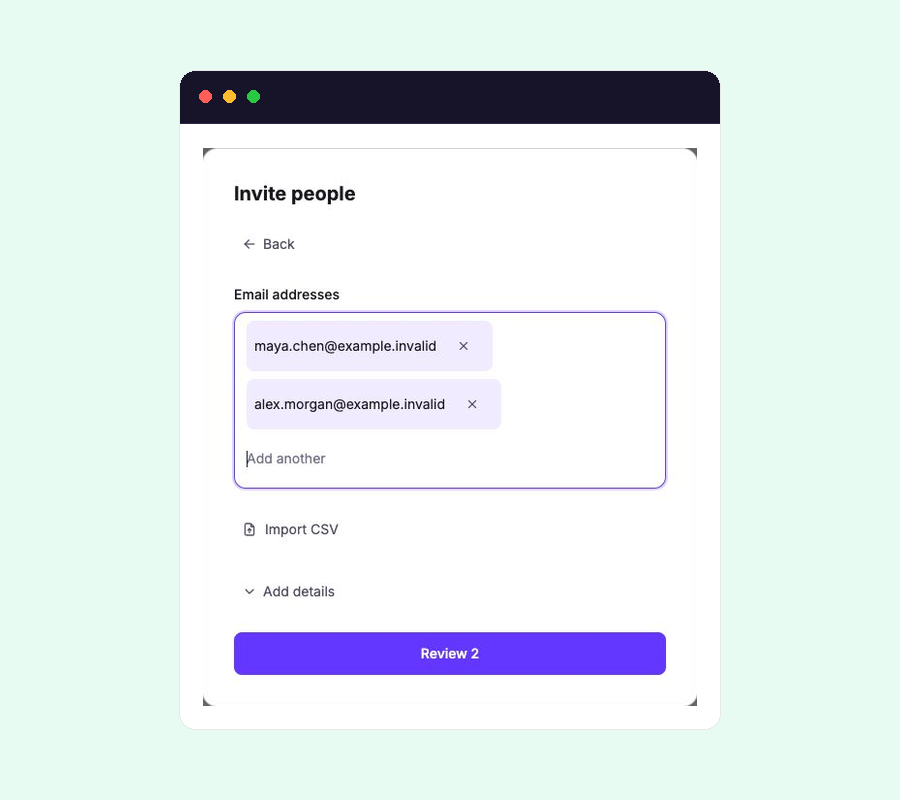
Turn on Automation when the sequence is ready, then select Invite people. Add individual email addresses, paste a list, or import a CSV for a larger audience.
Recipients can begin receiving the live emails as soon as you invite them. Test with a small internal group first rather than using customers as your test audience.
Include names and relevant person details when you have them. Use an email address the recipient actively monitors, and do not upload people who have not agreed to receive this type of outreach.
Manage the live outreach
Once active, holito moves each person through the sequence independently. Messages that no longer apply are skipped, and outreach ends when the person completes the conversation, unsubscribes, is removed, or can no longer receive the email.
Use the conversation’s People list to follow progress and read the message history before contacting someone separately. The participant and invitation status reference explains states such as Added, Invited, Started, Completed, Paused, and Delivery issue.
Intervene when the relationship needs judgment that automation cannot provide:
- Pause a person when they ask for more time or your team needs to respond personally.
- Check a delivery issue before trying another address or contact route.
- Remove someone when they should receive no further outreach from this sequence.
- Review the full sequence before changing it after invitations have started, because edits can affect people who are already moving through it.
After responses arrive, continue with Review responses and create content.