Sharing & Inviting Respondents
You’ve created your interview - now get people to take it. holito gives you several ways to share your interview link.
Sharing options
Your sharing options appear automatically after creating an interview. You can also access them anytime by clicking Invite on the interview page.
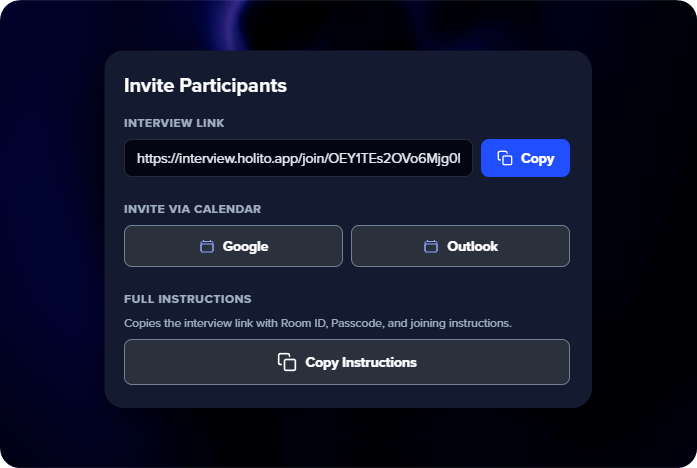
You have four ways to share:
- Copy Link - A direct invite URL. Anyone who clicks it can start the interview immediately - no account needed.
- Calendar Invite - Add the interview to Google Calendar or Outlook with one click. The calendar event includes the interview link, room ID, passcode, and setup instructions.
- Copy Instructions - A pre-written message with everything a respondent needs: the link, room ID, passcode, and how to get started. Paste it into an email, Slack message, or anywhere else.
- Personalize Link - Add a specific respondent’s details ahead of time so they skip the form and get to the interview faster.
Personalised invite link
Pre-fill a respondent’s details so they skip the form and get straight to the interview.
Available fields:
| Field | Example |
|---|---|
| Name | Jane Doe |
| [email protected] | |
| Job | Product Manager |
| Company | Acme Inc |
Using the invite screen
Click Personalize Link on the invite screen, fill in the fields, and copy the generated link.
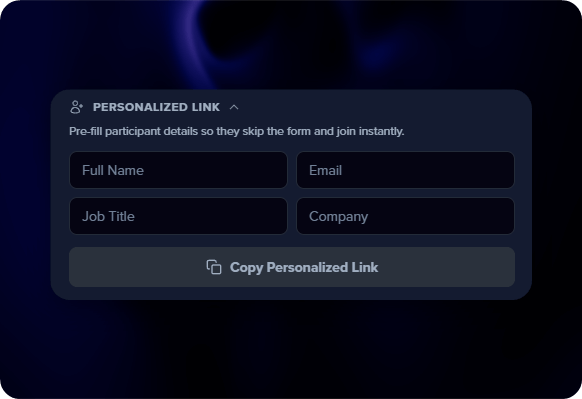
When all required fields are already filled in via the link, respondents skip the form entirely and go straight to choosing their microphone and language. This is the fastest path to a completed interview.
Building a link manually
You can also build personalised links yourself by adding details to the end of your invite URL. This is useful if you’re sending to a list of people and want to customise each link.
https://testimonial.holito.com/join/your-invite-hash?name=Jane+Doe&[email protected]&job=Product+Manager&company=Acme+Inc
Use + for spaces. You can include any combination of these:
?name=Jane+Doe
&[email protected]
&job=Product+Manager
&company=Acme+Inc
Custom metadata
You can attach up to 6 custom key-value pairs to any invite link using meta_ followed by any label you choose:
?name=Jane+Doe&[email protected]&meta_source=email_campaign&meta_segment=enterprise
This metadata appears on each response and can be used for things like:
- Attribution - Track which campaign, channel, or ad a response came from
- Segmentation - Tag responses by customer tier, plan, or region
- Internal IDs - Attach user IDs, account numbers, or CRM references for easy matching
Where to share
- Email outreach - The most effective channel. Use the Personalize Link option for each recipient to add their details ahead of time.
- Slack or Teams - Drop the copied instructions in a relevant channel. The pre-written message includes everything people need.
- Social media - Share the link publicly for open community feedback. Works well for community-driven products.
- Website or app - Add the link as a button in your product, on your website, or in a post-purchase flow.
Example email template
Hi Jane,
We’d love to hear about your experience with [Product]. It takes about 5-10 minutes - our AI interviewer will guide you through a quick conversation.
Thanks!
The best time to ask for an interview is right after a positive experience - a successful onboarding, a support win, or a milestone reached. Catch people when they’re happy and engaged.
Maximizing response rates
- Fill in details ahead of time - Less typing means more completions
- Keep it personal - “We’d love YOUR feedback” beats “Please complete our survey”
- Set expectations - Tell people it takes 5-10 minutes
- Share the why - Explain how their input will be used
- Follow up once - A gentle reminder to non-responders goes a long way