Managing Interview Responses
As interviews are completed, responses appear on your dashboard. Each response gives you a full transcript, video playback, and an auto-generated report.
Your dashboard
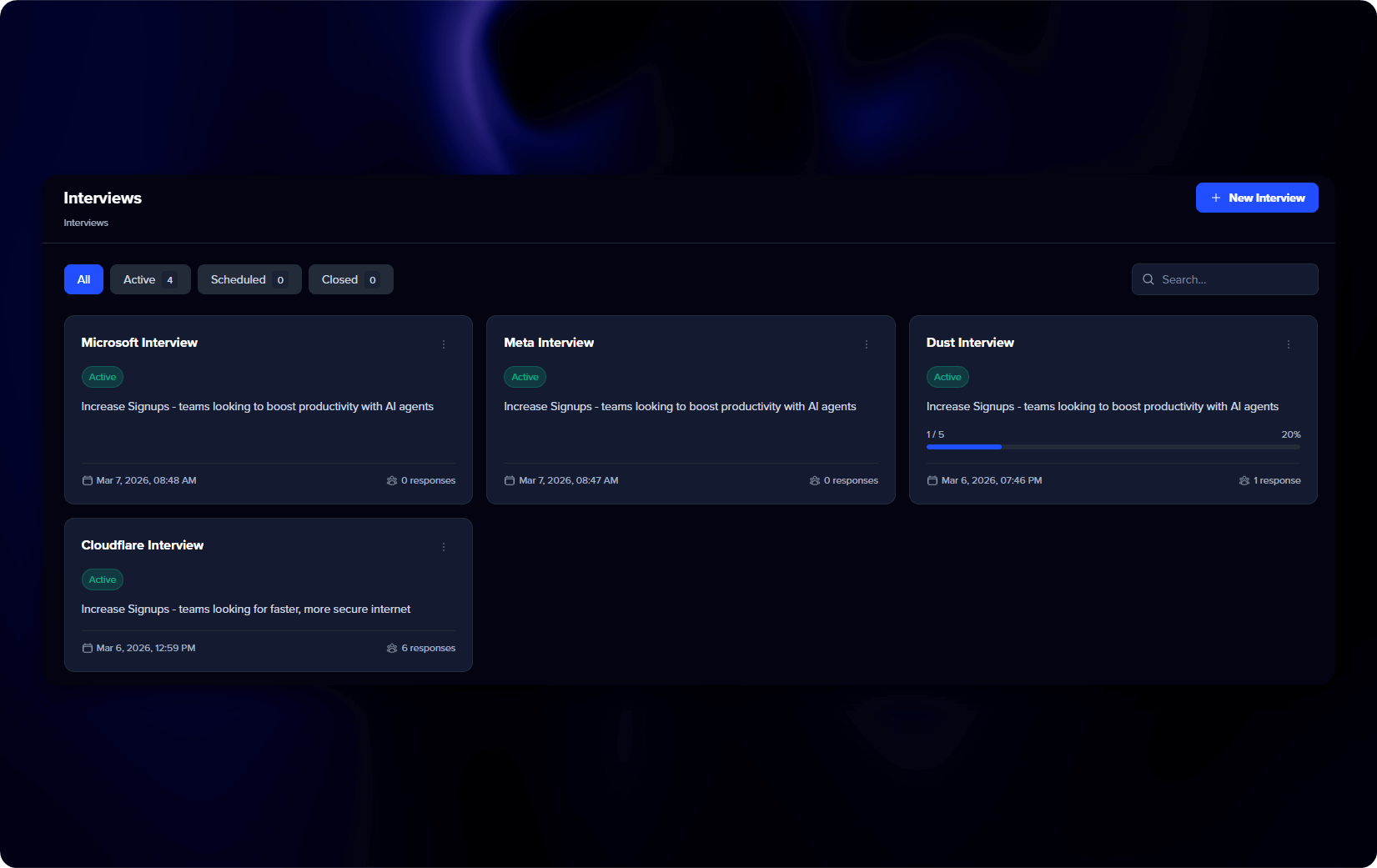
Your dashboard shows all your interviews. Use the filters at the top to narrow by status (Active, Scheduled, Completed) or search by name. Click any interview to open its detail page.
Interview detail page
The detail page lets you navigate between individual responses or select “All Responses” for the combined overview (available with 2+ completed responses).
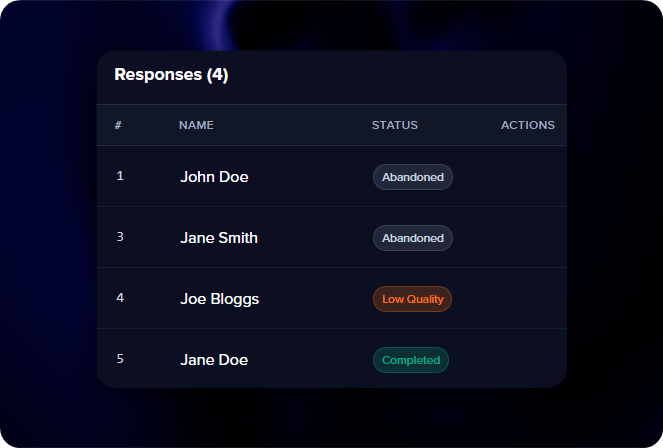
Each response gives you access to:
- Overview - The auto-generated report for this interview. See Understanding Reports for a full breakdown of what each report contains.
- Transcript / Video - The full conversation with speaker labels. For video interviews, the transcript syncs with the video player - click any segment to jump to that moment.
- Marketing - Generate publication-ready content from your interview, including case studies and expert articles.
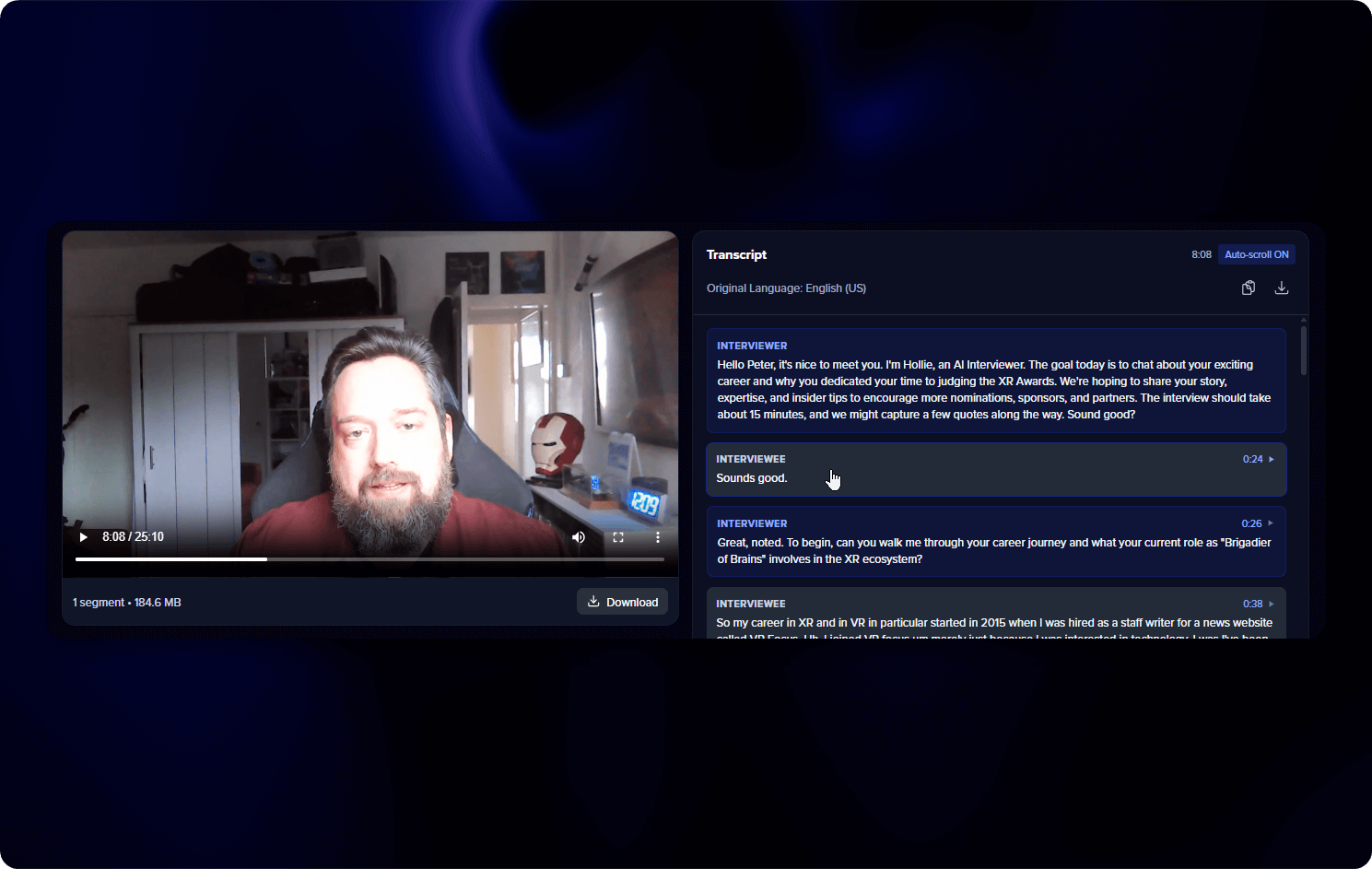
Quotes in the report are linked to their position in the transcript. Click any quote to jump to the exact moment it was said.
Respondent details
On the right side of the page, you can see the respondent’s info (name, email, job, company, LinkedIn) and response details (status, duration, quote count). You can edit respondent details from here.
Response statuses
| Status | What it means |
|---|---|
| Completed | Interview finished successfully |
| In Progress | Someone is currently being interviewed |
| Abandoned | Respondent left before finishing |
| Low Quality | The conversation didn’t yield enough useful insights |
Managing interviews
From the dashboard or detail page, you can:
- Close / Reopen - Stop accepting new responses or start collecting again. The invite link will show a “closed” message while closed.
- Clone Interview - Create a new interview with the same setup.
- Delete a response - Remove individual responses from the detail page. This permanently removes the transcript, video, and all associated data.
- Delete an interview - Permanently remove the interview and everything with it.
Deleted responses and interviews cannot be recovered. Make sure you’ve saved anything you need first.