Advanced Interview Settings
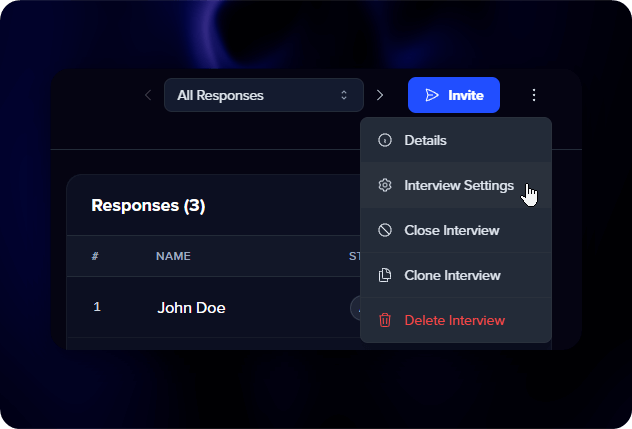
When creating an interview, you can expand Advanced Settings on the final step to configure these options. You can also change them at any time after creation by opening the menu on any interview and selecting Interview Settings.
Response controls
- Max responses - Limit how many people can complete the interview. Once hit, it closes automatically. Leave blank for unlimited. Each response uses one interview credit.
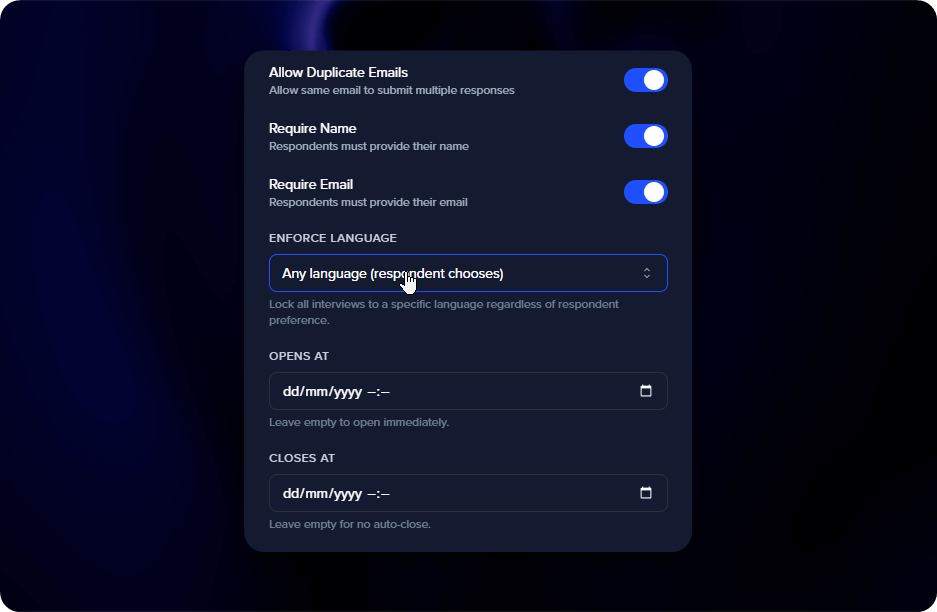
- Allow duplicate emails - On by default. Turn off if you want each person to interview only once.
Required fields
- Require name - When on, respondents must enter their full name before starting.
- Require email - When on, respondents must provide their email. Useful for follow-ups or matching interviews to customer records.
Turn both off for fully anonymous interviews.
Language
- Content language - The language used for your reports and generated content (case studies, articles).
- Interview language - By default respondents choose their own. Lock to a specific language if your team only reads one language, you want consistent data, or you’re targeting a specific market.
View all 20 supported languages
| Language | Native name |
|---|---|
| English (US) | English |
| French | Français |
| German | Deutsch |
| Spanish (US) | Español |
| Portuguese (Brazil) | Português |
| Italian | Italiano |
| Dutch | Nederlands |
| Polish | Polski |
| Russian | Русский |
| Turkish | Türkçe |
| Japanese | 日本語 |
| Korean | 한국어 |
| Thai | ภาษาไทย |
| Vietnamese | Tiếng Việt |
| Indonesian | Bahasa Indonesia |
| Hindi | हिन्दी |
| Bangla | বাংলা |
| Tamil | தமயழ் |
| Telugu | తెలుగు |
| Arabic | العربية |
Scheduling
- Opens at - Set a future date when the interview becomes available. Useful for coordinating with launches or running research in batches.
- Closes at - Set a deadline after which no new responses are accepted.
You can combine both with a max response limit for full control, e.g. “Accept up to 20 responses between March 1-15.”
Interview actions
Beyond settings, the menu on any interview also lets you:
- Invite - Open sharing options to send the link
- Close / Reopen Interview - Stop or resume accepting responses
- Clone Interview - Create a new interview with the same setup
- Delete Interview - Permanently remove the interview and all its data
Deleting is permanent
Deleting an interview removes everything - all responses, transcripts, videos, and reports. This cannot be undone.